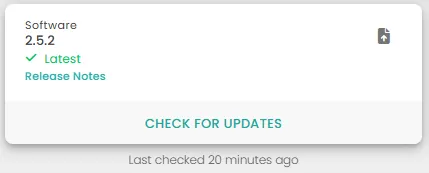
How to Update Your Fusionflow MXM to the Latest Software
Step 1: Check for updates
Navigate to “Settings” on the left side of your screen and select “System”. This will show you a lot of information about your device, including its current software and firmware version. Simply click “Check for Updates” and the MXM will connect to our online software database to check for new releases.
Step 2: Download latest software
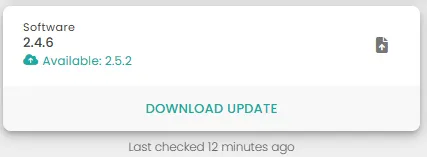
When an update is found, the new version will be displayed below the current version. Click “Download Update”. This may a few minutes.
Step 3: Install update
Once downloaded, the progress bar will be replaced with an “Install Update” button. Click this button to install. A brief warning will appear reminding you to keep the MXM connected to power. The installation may take several minutes. During this time, no changes can be made to the mixer. As such the main display will show an updating screen and the web browser connection will be unavailable.
Step 4: Restart to complete the update
Immediately after installation, the MXM will ask you to “Reload”. This is merely a restart to fully complete the update. Click “Reload” and the device will restore itself. If using a web browser, this may need to be reloaded separately.
The mixer will now confirm that it has the latest firmware. You can click “Release Notes” to see what is new in each software version.